
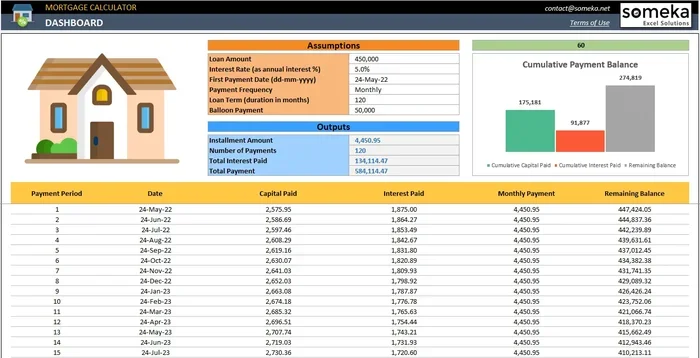
Calculating your monthly mortgage payment is easy when you use the right tools. This guide shows you exactly how to calculate mortgage payment in Google Sheets using simple formulas. You will learn to manage your budget and plan for your future home with confidence.
Key Takeaways
- Use the PMT function: This is the core formula for calculating loan payments.
- Understand your inputs: You need the interest rate, number of periods, and loan amount.
- Adjust for monthly payments: Divide the annual rate by 12 and multiply years by 12.
- Include extra costs: Factor in taxes and insurance for a true monthly cost.
- Create an amortization schedule: Track how much of each payment goes to interest versus principal.
- Compare loan options: Use your sheet to test different rates and terms.
- Keep data organized: Label your cells clearly to avoid confusion later.
📑 Table of Contents
- Why Use Google Sheets for Mortgage Calculations
- Understanding the PMT Function
- Setting Up Your Spreadsheet
- Step-by-Step Calculation Guide
- Adding Taxes and Insurance
- Creating an Amortization Schedule
- Common Mistakes to Avoid
- Expert Insights on Budgeting
- Comparing Different Loan Options
- Final Thoughts on Financial Planning
Why Use Google Sheets for Mortgage Calculations
Buying a home is one of the biggest financial steps you will take. It is exciting but also stressful. You need to know exactly what you can afford. Many people rely on online calculators. However, these tools can be limiting. They often lack flexibility. You cannot save your data or tweak variables easily.
Google Sheets offers a better solution. It is free and accessible. You can access it from any device. You can also customize it to fit your specific needs. Learning how to calculate mortgage payment in Google Sheets gives you control. You are not dependent on a website staying online. You own your data. This helps you plan your budget with precision.
Furthermore, spreadsheets allow for scenario planning. You can change the interest rate instantly. You can see how a larger down payment affects your monthly cost. This flexibility is crucial for smart financial planning. It empowers you to make informed decisions. You can avoid overextending your budget. This peace of mind is valuable during the home buying process.
Understanding the PMT Function
Visual guide about mortgage payment calculator spreadsheet
Image source: db-excel.com
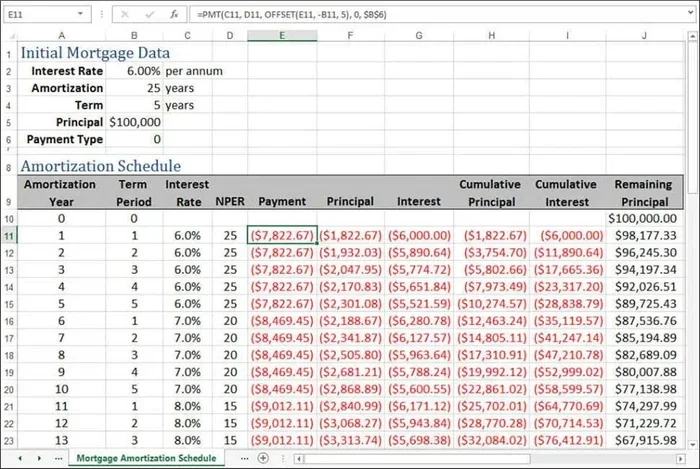
The core of this process is the PMT function. This is a built-in financial function. It stands for Payment. It calculates the payment for a loan. It is based on constant payments and a constant interest rate. You do not need to be a math expert. Google Sheets does the heavy lifting for you.
The syntax is straightforward. You need three main arguments. First is the rate. This is the interest rate for the period. Second is the number of periods. This is the total number of payments. Third is the present value. This is the loan amount. There are two optional arguments. You can specify a future value. You can also choose when payments are due.
Using this function is reliable. It follows standard financial formulas. You can trust the results for your planning. It is important to input the data correctly. Small errors can lead to big differences. Always double-check your cell references. This ensures your mortgage calculation is accurate.
Setting Up Your Spreadsheet
Visual guide about mortgage payment calculator spreadsheet
Image source: cdn.vertex42.com
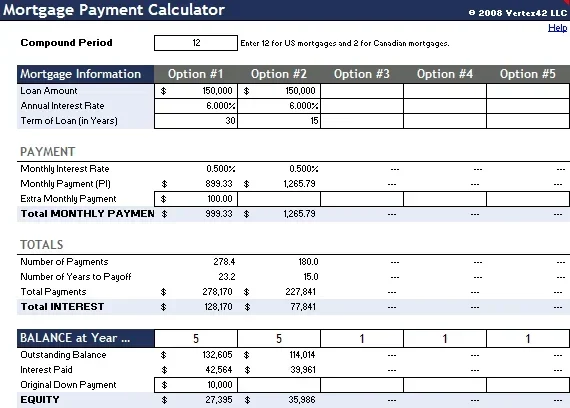
Before writing formulas, you need organization. A clean sheet prevents mistakes. Start by labeling your input cells. Create a section for loan details. You should have a cell for the loan amount. Another cell should hold the annual interest rate. You also need a cell for the loan term in years.
Here is a simple layout to follow:
- Cell A1: Loan Amount
- Cell B1: The actual dollar amount
- Cell A2: Annual Interest Rate
- Cell B2: The percentage rate
- Cell A3: Loan Term (Years)
- Cell B3: The number of years
This structure keeps everything visible. You can change the values in column B. The formula will update automatically. This dynamic nature is powerful. It allows you to test different loan scenarios quickly. You can see how a 3% rate compares to a 4% rate. You can see the difference between a 15-year and 30-year term.
Step-by-Step Calculation Guide
Visual guide about mortgage payment calculator spreadsheet
Image source: someka.net
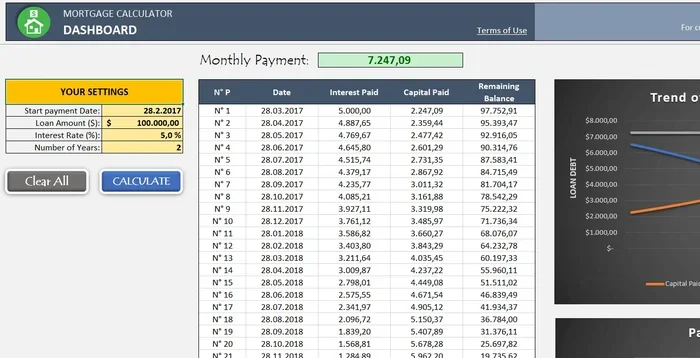
Now you are ready to write the formula. This is the heart of how to calculate mortgage payment in Google Sheets. You will create a cell for the monthly payment. Let us say you put this in cell B4. You will use the PMT function here.
The formula looks like this: =PMT(rate/12, term*12, -loan_amount). You must divide the rate by 12. This converts the annual rate to a monthly rate. You must multiply the term by 12. This converts years to months. You should also make the loan amount negative. This ensures the payment result is positive. It represents cash flowing out.
Here are the specific steps:
- Click on the cell where you want the payment result.
- Type =PMT( to start the function.
- Select the interest rate cell and divide by 12.
- Add a comma and select the term cell multiplied by 12.
- Add a comma and select the loan amount cell.
- Add a negative sign before the loan amount cell reference.
- Close the parenthesis and press Enter.
Once you press Enter, the number appears. This is your principal and interest payment. It does not include taxes or insurance. You will need to add those separately. This gives you a baseline for your budget. You can now adjust the inputs to see changes. This process is fast and efficient.
Adding Taxes and Insurance
Your actual monthly payment is usually higher. Lenders often collect property taxes and insurance. They hold this money in an escrow account. You need to account for this in your sheet. Create new rows for these costs. You can estimate these amounts based on local data.
Add a cell for annual property tax. Divide this by 12 for the monthly cost. Add a cell for annual homeowners insurance. Divide this by 12 as well. Some lenders also require PMI. This is Private Mortgage Insurance. It applies if your down payment is low. You should include this if it applies to you.
Summing these up gives your total PITI payment. PITI stands for Principal, Interest, Taxes, and Insurance. This is the real number you need to afford. Your bank will look at this total. They compare it to your income. This helps determine your debt-to-income ratio. Keeping this ratio low is good for your financial health.
Creating an Amortization Schedule
An amortization schedule shows payment details over time. It breaks down each payment. You see how much goes to interest. You see how much goes to principal. Early payments are mostly interest. Later payments are mostly principal. This is a key concept in home loan management.
You can build this table in Google Sheets. You need columns for payment number, date, payment amount, interest, principal, and balance. The first row starts with your initial loan balance. You use formulas to calculate the interest for that period. You subtract the interest from the total payment. The remainder reduces the principal.
This schedule helps you understand equity. You see how your ownership grows. It also helps you plan for extra payments. If you pay extra, you reduce the principal faster. This saves you money on interest. You can model this in your sheet. You can see how much time you save on the loan. This is a powerful way to save on interest costs.
Common Mistakes to Avoid
Even simple tools can lead to errors. You must be careful with your inputs. One common mistake is forgetting to convert the rate. Using the annual rate instead of monthly will skew results. Another mistake is ignoring the loan term conversion. You must multiply years by 12 for monthly payments.
Here are some pitfalls to watch for:
- Wrong sign on loan amount: This can make the payment negative.
- Ignoring escrow costs: This underestimates your true monthly bill.
- Hardcoding numbers: Use cell references so you can change inputs easily.
- Confusing APR and Interest Rate: APR includes fees, while the rate is just interest.
Always review your results. Do they make sense? If the payment seems too low, check your rate. If it seems too high, check your term. Compare your result with an online calculator. This validates your work. Accuracy is key when planning your financial future.
Expert Insights on Budgeting
Financial experts recommend keeping housing costs low. A common rule is the 28% rule. Your housing payment should not exceed 28% of your gross income. Your total debt should not exceed 36%. Using your spreadsheet helps you stick to these rules. You can input your income and see the max payment.
You should also plan for maintenance. Homes require repairs. A good rule is to save 1% of the home value yearly. Add this to your monthly budget calculation. This prepares you for unexpected costs. It prevents financial stress later. Being proactive is better than reacting to emergencies.
Consider your long-term goals too. Will your income change? Do you plan to start a family? These life events affect your budget. Your Google Sheets mortgage calculator can adapt. You can create different tabs for different scenarios. This holistic view supports better decision-making.
Comparing Different Loan Options
You might have multiple loan offers. You can compare them side by side. Create columns for each loan option. List the rates and terms for each. Use your PMT formula for each column. This visualizes the differences clearly. You can see which loan is cheaper overall.
Sometimes a lower rate means higher fees. You need to look at the big picture. Calculate the total cost of the loan. Multiply the monthly payment by the number of months. Add any upfront fees. This gives you the total amount paid. This comparison helps you choose the best deal. It ensures you are not misled by low monthly payments.
You can also test adjustable-rate mortgages. These rates change over time. You can model potential rate increases. This shows you the risk involved. Fixed-rate loans are more predictable. Your sheet helps you weigh stability versus potential savings. This is a crucial part of mortgage planning.
Final Thoughts on Financial Planning
Mastering your mortgage calculation is empowering. It removes the mystery from home buying. You know exactly what you are signing up for. You can negotiate with confidence. You can set a realistic budget. This reduces anxiety during the process.
Remember that your spreadsheet is a living document. Update it as rates change. Update it as your savings grow. Use it to track your progress toward homeownership. It is a tool for your entire journey. From saving for a down payment to paying off the loan.
Taking control of your finances is always a good idea. It leads to less stress and more freedom. You can focus on enjoying your home. You do not have to worry about hidden costs. You have planned for everything. This is the benefit of knowing how to calculate mortgage payment in Google Sheets.
Frequently Asked Questions
What is the PMT function in Google Sheets?
The PMT function calculates the payment for a loan. It uses a constant interest rate and constant payments. It is the primary tool for mortgage calculations.
How do I convert annual interest rate to monthly?
You simply divide the annual rate by 12. This gives you the monthly interest rate. You must do this for accurate monthly payment results.
Does the PMT function include taxes and insurance?
No, the PMT function only calculates principal and interest. You must add taxes and insurance manually. This gives you the total housing payment.
Why is my mortgage payment showing as negative?
This happens if you do not make the loan amount negative. You should use a negative sign before the loan amount cell. This makes the payment result positive.
Can I calculate extra payments in Google Sheets?
Yes, you can adjust your amortization schedule. You can add extra principal payments manually. This helps you see interest savings over time.
What if I have an adjustable-rate mortgage?
You can model different rate scenarios in your sheet. Change the rate cell to see new payments. This helps you assess loan risk.